Introduction
gogcli is a CLI tool that enables operating major Google services such as Gmail, Calendar, Drive, Sheets, Tasks, and Contacts from the terminal. It supports JSON output and is highly compatible with scripts and pipelines. It also supports multiple account management and least-privilege authentication.
This article covers everything from gogcli installation to Google Cloud project setup, OAuth authentication, and basic usage.
Supported Services
| Service | Main Features |
|---|---|
| Gmail | Email search, send, label management, filters, drafts, Watch (Pub/Sub) |
| Calendar | Event listing, creation, update, deletion, free-busy check, team calendar |
| Drive | File search, upload, download, sharing permission settings |
| Sheets | Spreadsheet read/write, row/column insertion, formatting, export |
| Docs | Document creation, Markdown import, PDF/DOCX export |
| Slides | Presentation creation, slide addition, PDF/PPTX export |
| Contacts | Contact search, creation, update, directory search |
| Tasks | Task list management, task addition, completion, repeat settings |
| Chat | Space listing, message sending, DM (Workspace only) |
| Forms | Form creation, retrieval, response viewing |
| Apps Script | Project management, function execution |
| Keep | Note listing, search (Workspace + service account only) |
| Groups | Group listing, member display (Workspace only) |
Installation
Homebrew (Recommended)
brew install steipete/tap/gogcli
Build from Source
Go 1.24 or later is required.
git clone https://github.com/steipete/gogcli.git
cd gogcli
make
After a successful build, the binary is generated at ./bin/gog.
./bin/gog --version
# v0.11.0 (xxxxxxxxxxxx 2026-02-25T...)
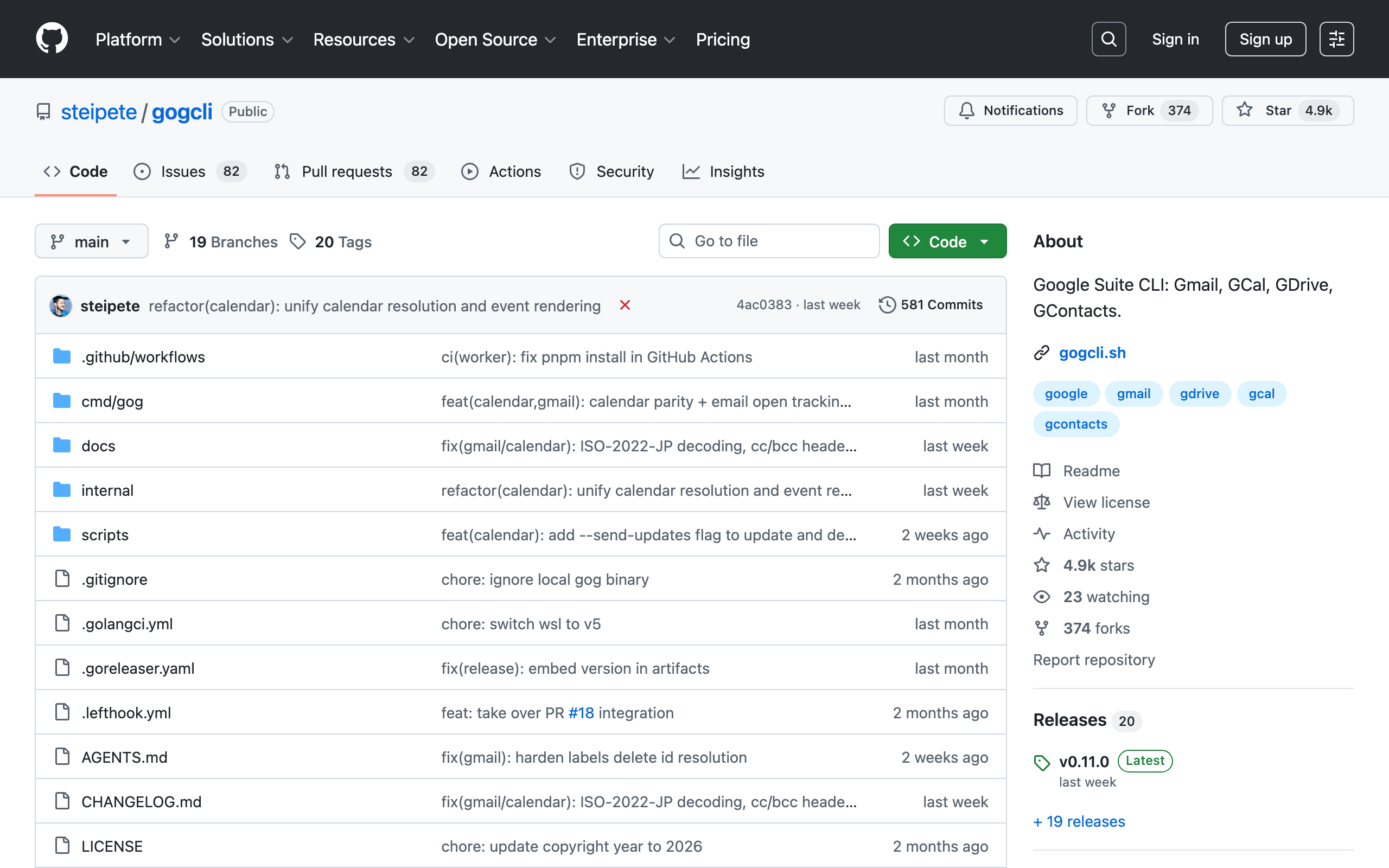
gogcli GitHub Repository (github.com/steipete/gogcli )
Command Structure
The gog command provides each service as a subcommand.
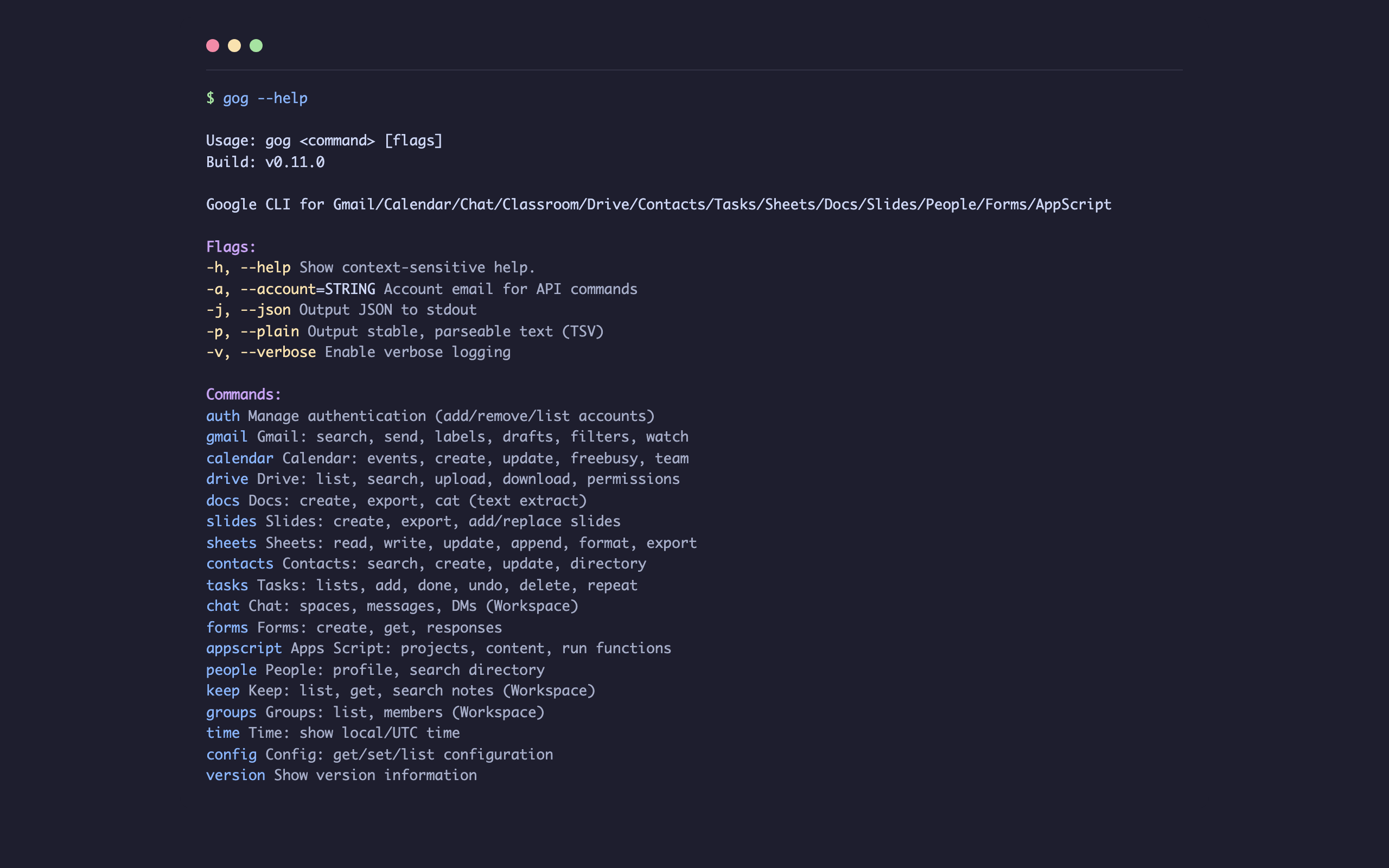
gog –help output. Each Google service is operated via subcommands
Google Cloud Project Setup
To use gogcli, you need to create an OAuth client in a Google Cloud project and enable the required APIs.
Enabling APIs
Multiple APIs can be enabled at once with the gcloud command:
gcloud services enable \
  gmail.googleapis.com \
  calendar-json.googleapis.com \
  drive.googleapis.com \
  sheets.googleapis.com \
  tasks.googleapis.com \
  people.googleapis.com \
  chat.googleapis.com \
  classroom.googleapis.com \
  forms.googleapis.com \
  script.googleapis.com \
  cloudidentity.googleapis.com \
  docs.googleapis.com \
  --project=<PROJECT_ID>
OAuth Consent Screen Configuration
- Access the Google Cloud Console OAuth consent screen
- Set the app name, support email, etc.
- If the app is in “Testing” state, add your email address on the test users settings screen
In testing mode, only accounts registered as test users can authenticate. If not registered, a “403: access_denied” error like the following will occur:
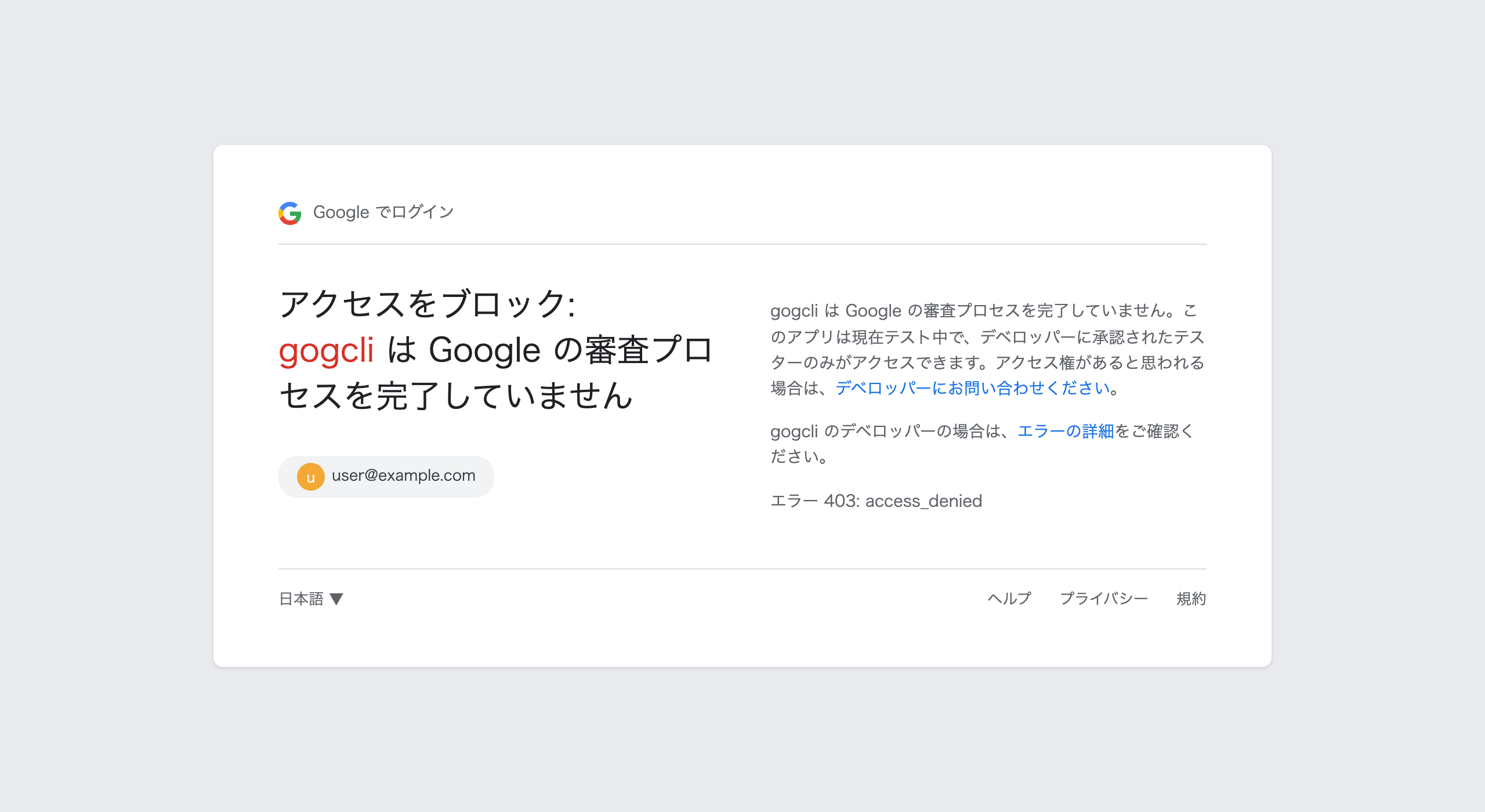
403 access_denied error screen during Google OAuth authentication. Displayed when test user is not registered (OAuth consent screen test user settings )
Obtaining OAuth Client JSON
- Access the Google Cloud Console credentials screen
- Click “Create Client”
- Select “Desktop app” as the application type
- Download the JSON file (
client_secret_....apps.googleusercontent.com.json)
Authentication
Registering Credentials
Register the downloaded OAuth client JSON with gogcli:
gog auth credentials ~/Downloads/client_secret_XXXX.json
Account Authentication
gog auth add you@gmail.com
A browser opens and the Google OAuth authentication screen is displayed. A warning saying “This app isn’t verified” appears; proceed by clicking “Advanced” → “Go to gogcli (unsafe)”.
After authentication is complete, the following screen is displayed:
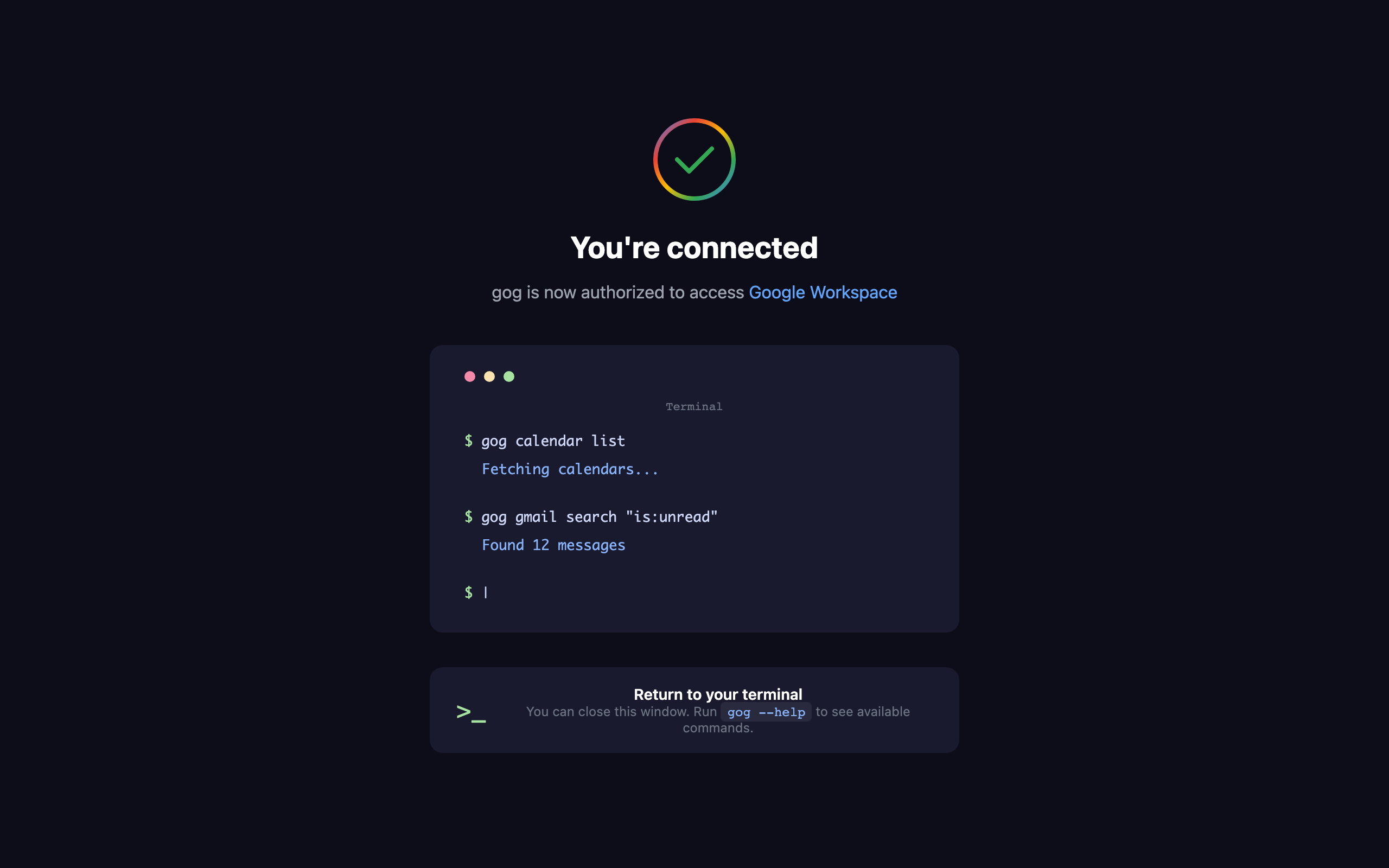
Authentication success screen after gog auth add completes. ‘You’re connected’ is displayed in the browser
Verifying Authentication
gog auth list
gog auth status
auth list shows the list of registered accounts, and auth status shows the authentication status and service list for the current account.
Keyring Backend
On macOS, Keychain is used by default. If the Keychain password input prompt appears frequently, you can switch to the file backend:
# Switch to file backend
gog auth keyring file

# Skip password input (for CI/automation use)
export GOG_KEYRING_PASSWORD='any password'
Usage
Setting Default Account with Environment Variable
Specifying --account every time is tedious, so it’s convenient to set the default account in an environment variable:
# Add to .zshrc
export GOG_ACCOUNT=you@gmail.com
Example Operations for Each Service
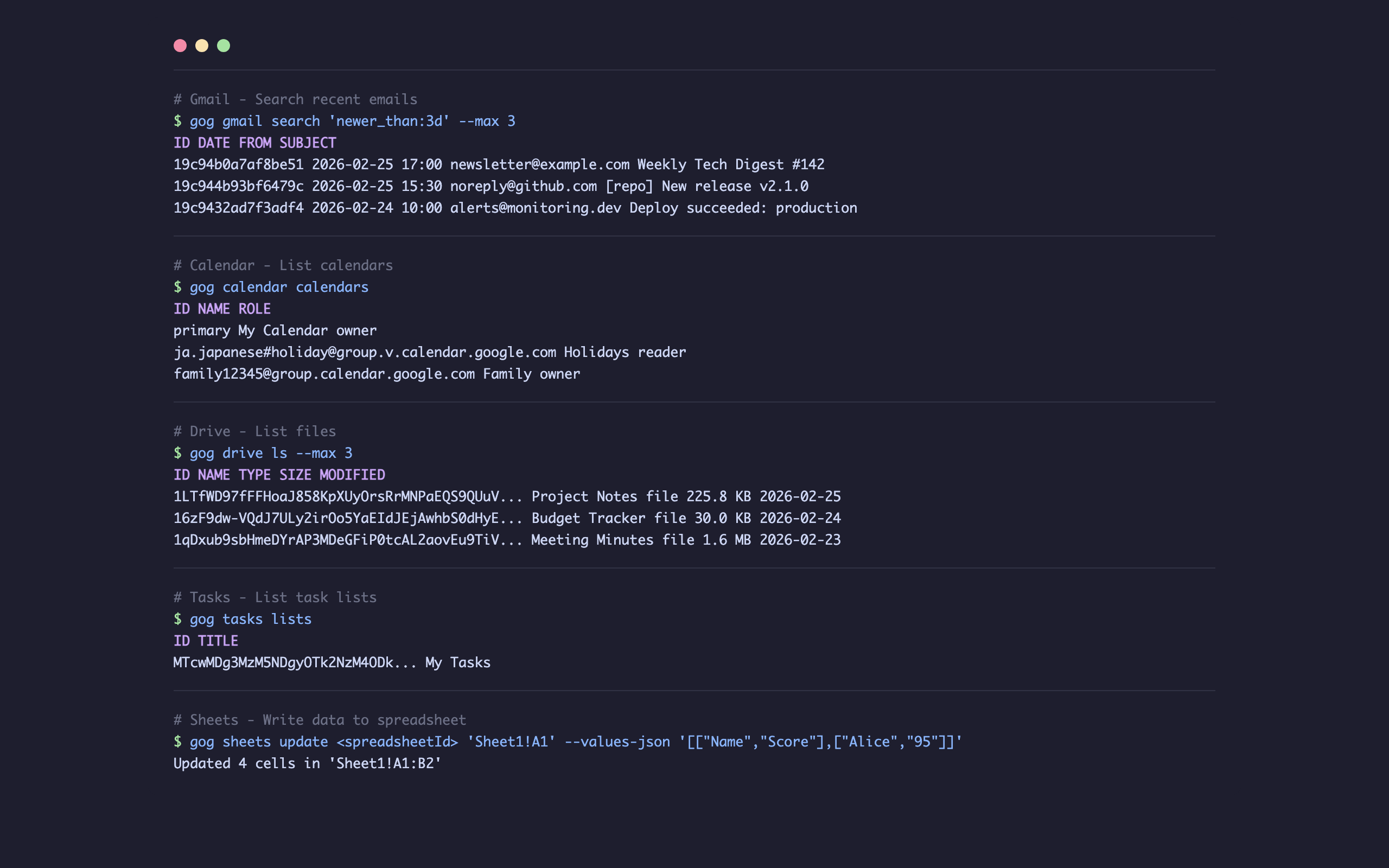
Example command executions for Gmail, Calendar, Drive, Tasks, and Sheets
Gmail
# Search emails from the past 3 days
gog gmail search 'newer_than:3d' --max 10

# Search unread emails
gog gmail search 'is:unread' --max 5

# List labels
gog gmail labels list

# Send email
gog gmail send --to user@example.com --subject "Subject" --body "Body"
Calendar
# List calendars
gog calendar calendars

# Today's events
gog calendar events primary --today

# This week's events
gog calendar events primary --week

# Create event
gog calendar create primary \
  --summary "Meeting" \
  --from 2026-03-01T10:00:00+09:00 \
  --to 2026-03-01T11:00:00+09:00
Drive
# List files
gog drive ls --max 10

# Search files
gog drive search "keyword" --max 10

# Download
gog drive download <fileId> --out ./file.pdf
Sheets
# Read spreadsheet
gog sheets get <spreadsheetId> 'Sheet1!A1:B10'

# Write data
gog sheets update <spreadsheetId> 'A1' --values-json '[["Name","Score"],["Alice","95"]]'

# Create new
gog sheets create "Sheet Name" --sheets "Sheet1,Sheet2"
Tasks
# List task lists
gog tasks lists

# Add task
gog tasks add <tasklistId> --title "Task Name"

# Complete task
gog tasks done <tasklistId> <taskId>
Contacts
# List contacts
gog contacts list --max 50

# Search contacts
gog contacts search "name" --max 10
JSON Output
Adding the --json flag outputs in JSON format. Suitable for scripting with jq:
# Extract only PDF files
gog --json drive ls --max 50 | jq '.files[] | select(.mimeType=="application/pdf")'

# Get thread IDs of unread emails
gog --json gmail search 'is:unread' --max 100 | jq -r '.threads[].id'
Multiple Accounts
# Switch accounts
gog gmail search 'is:unread' --account personal@gmail.com
gog gmail search 'is:unread' --account work@company.com

# Set alias
gog auth alias set work work@company.com
gog gmail search 'is:unread' --account work
Summary
gogcli covers 13+ Google services with a single CLI tool, providing practical features including JSON output, multiple account support, and least-privilege authentication. Setup requires Google Cloud project configuration and OAuth authentication, but once configured, tokens are automatically refreshed for continuous use.
It is a useful tool for those who want to operate Google services from the terminal or automate with shell scripts.