Want to upload to S3 using the sftp command instead of the AWS CLI? AWS Transfer for SFTP is the managed service for exactly this.
Starting/Creating the SFTP Server
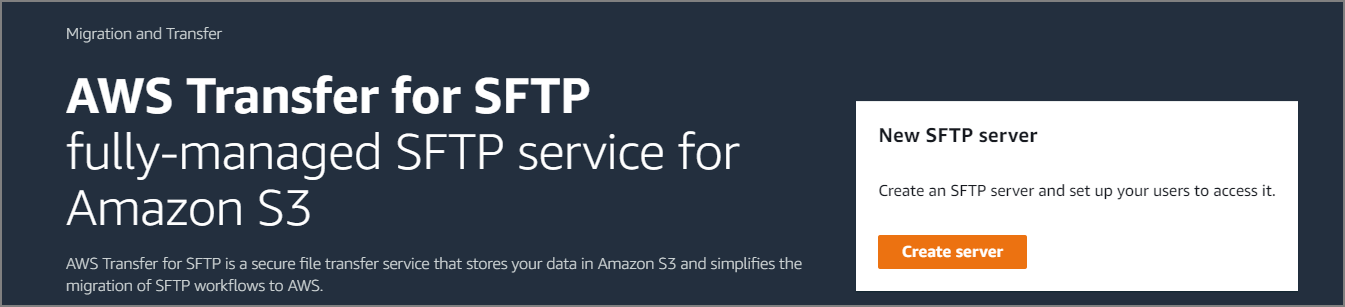
Select AWS Transfer for SFTP from the service list and click “Create Server”.
In Endpoint configuration, select the Endpoint type. Here we select Public. Configure Logging Role and Tags as needed.
Creating a User
Specify a role - S3 access permissions are required. AssumeRole is also needed.
Creating IAM Policies and Roles for SFTP - AWS Transfer for SFTP https://docs.aws.amazon.com/ja_jp/transfer/latest/userguide/requirements-roles.html
Creating the Key Pair Required for User Creation
Register the generated public key in the user creation screen.
[ec2-user@walt-dev-ec2 ~]$ ssh-keygen -t rsa
Generating public/private rsa key pair.
Enter file in which to save the key (/home/ec2-user/.ssh/id_rsa):
Enter passphrase (empty for no passphrase):
Enter same passphrase again:
Your identification has been saved in /home/ec2-user/.ssh/id_rsa.
Your public key has been saved in /home/ec2-user/.ssh/id_rsa.pub.
The key fingerprint is:
SHA256:FGSySPzbCkxTDDiX/NYhnKP2ko/CTIrR2r/lZef83k4 ec2-user@walt-dev-ec2
Connecting
Run sftp using the created key. Connection successful.
[ec2-user@walt-dev-ec2 ~]$ sftp -i .ssh/id_rsa sftp-user@s-9ec720a3add94f11a.server.transfer.ap-northeast-1.amazonaws.com
Connected to s-9ec720a3add94f11a.server.transfer.ap-northeast-1.amazonaws.com.
sftp>
sftp> ls -l
drwxr--r--   1        -        -        0 Jan  1  1970 pluto-dev-s3-test
drwxr--r--   1        -        -        0 Jan  1  1970 z3-cloudtrail-s3-test