Introduction
In preparation for the GCP Associate Cloud Engineer exam, I reviewed the manual contents described in the exam guide and verified some of them on actual equipment, studying according to the exam guide. The following five major topics are covered in the exam:
- Setting up cloud solution environments
- Planning and configuring a cloud solution
- Deploying and implementing a cloud solution
- Ensuring successful operation of a cloud solution
- Configuring access and security
The exam guide further subdivides these major topics, and specific exam items are set as follows:
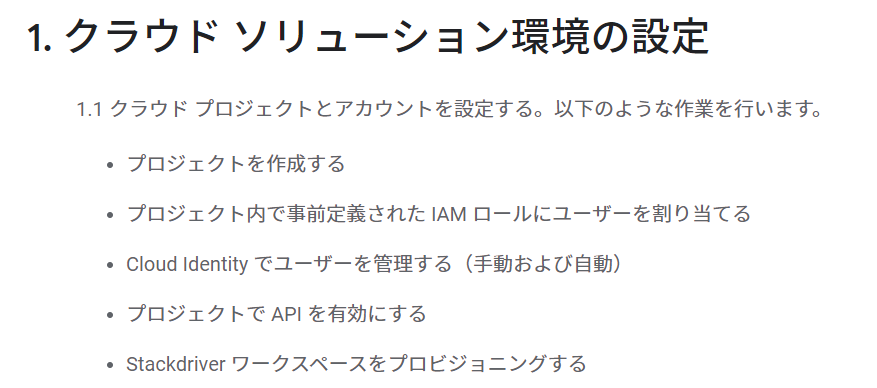
First, let’s examine Setting up cloud solution environments.
1. Setting Up Cloud Solution Environments
1.1 Set up cloud projects and accounts. Tasks include:
-
Creating a project
Reference: Creating and Managing Projects | Resource Manager Documentation | Google Cloud
A Google Cloud project is the basis for creating, enabling, and using all Google Cloud services, including managing APIs, enabling billing, adding and removing collaborators, and managing permissions for Google Cloud resources. For example, if you want to separate production and development environments, you would separate projects. In AWS, this corresponds to account separation, with IAM users created for each. Switching between environments (accounts) is done using IAM Switch Role. Personally, I find GCP’s approach easier to understand.
Console
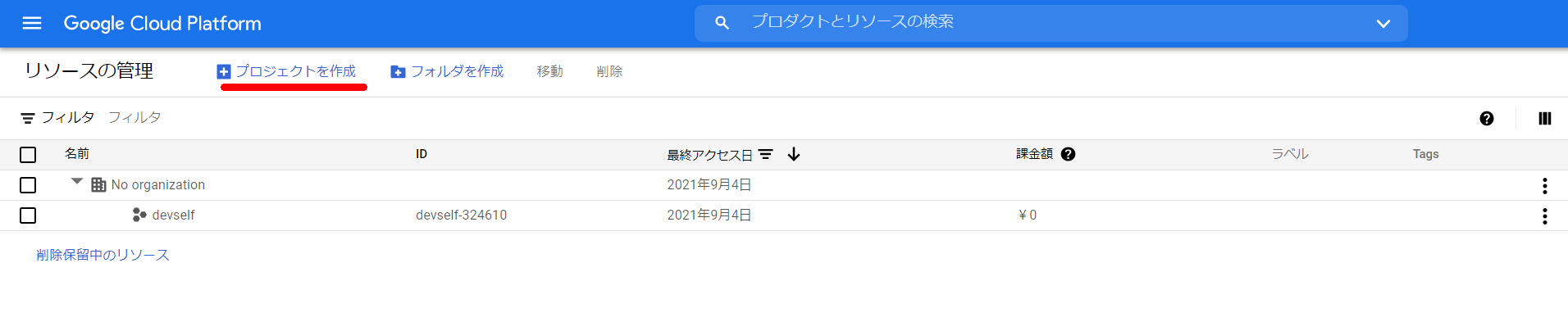
gcloud command
gcloud projects create PROJECT_ID
-
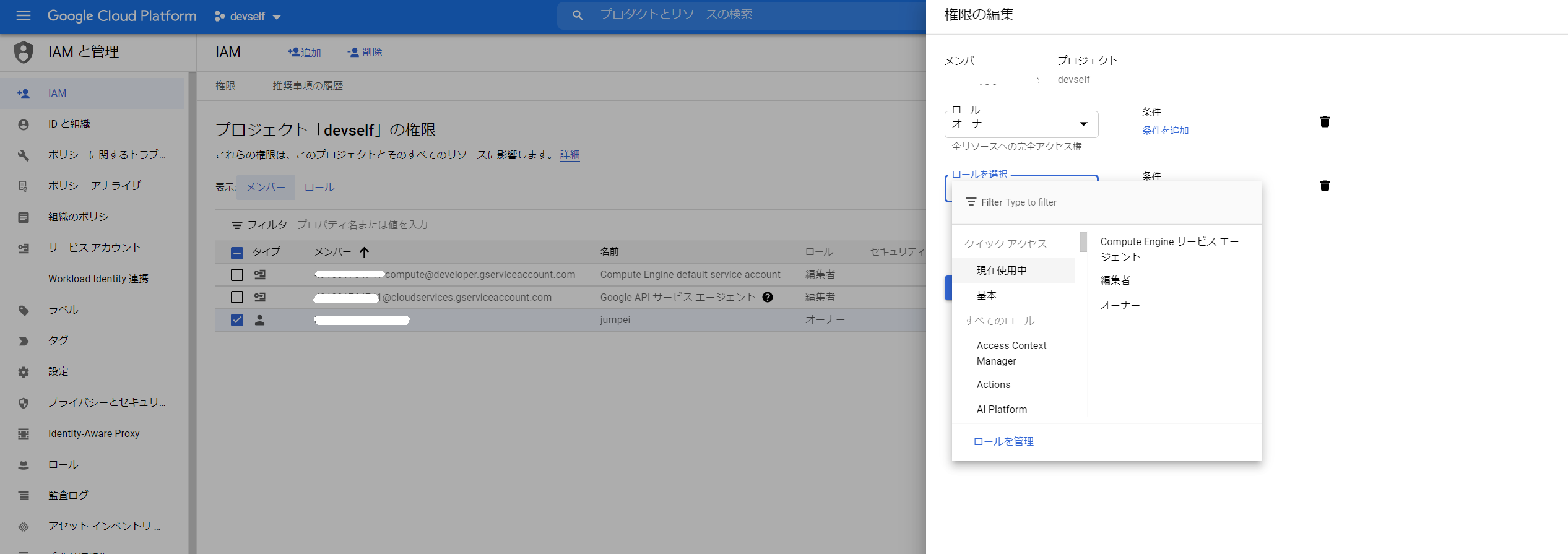
Assigning users to predefined IAM roles within a project
Reference: Managing Access to Projects, Folders, and Organizations | Cloud IAM Documentation | Google Cloud
- Select predefined roles to add from “IAM & Admin” > “IAM”.
-
GCP IAM elements are as follows. Note that while similar words are used as in AWS, the contents are completely different.
-
Reference: FAQ | Cloud IAM Documentation | Google Cloud
-
Member: The entity to which permissions are granted. Google Account, Service Account, Google Group, G Suite, Cloud Identity domain.
-
Role: A collection of permissions. When a role is granted to a member, all permissions in the role are granted.
-
Basic roles, predefined roles, and custom roles exist. Basic roles include Owner, Editor, and Viewer roles that affect all GCP services. Predefined roles are permission sets provided by GCP. Custom roles are permission sets configured by the user.
-
Basic roles have this note in the manual:
Caution: Basic roles include thousands of permissions across all Google Cloud services. In production environments, do not grant basic roles unless there is no alternative. Instead, grant the most limited predefined role or custom role that meets your needs.
-
AWS users may get confused, but GCP roles are equivalent to IAM policies in AWS.
-
-
Policy: Controls who (user) has what (role) permissions on which resource.
-
Similar to a bucket policy in AWS.
-
https://cloud.google.com/iam/docs/faq?hl=ja#what_does_an_policy_look_like
{
  "bindings": [
   {
     "role": "roles/owner",
     "members": [
       "user:jiwoo@example.com",
       "group:admins@example.com",
       "domain:google.com",
       "serviceAccount:my-other-app@appspot.gserviceaccount.com"]
      },
      {
        "role": "roles/compute.networkViewer",
        "members": ["user:luis@example.com"]
      }
    ]
}
-
-
-
Managing users in Cloud Identity (manually and automated)
-
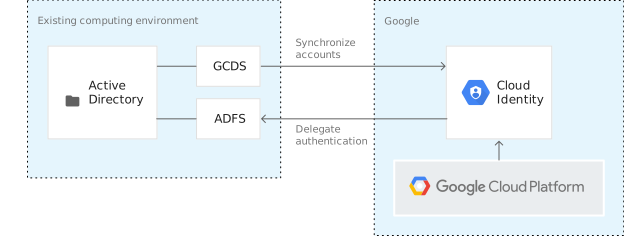
Since GCP is a Google service, Google Accounts can be used for GCP accounts. Organizations that cannot create Google Accounts or those using G Suite can manage accounts with Cloud Identity.
Reference: Setup Instructions for GCP Administrators - Cloud Identity Help
Cloud Identity is an Identity as a Service (IDaaS) and enterprise mobility management (EMM) solution. It provides the identity services and endpoint management available in Google Workspace as a standalone service. With Cloud Identity, administrators can manage users, apps, and devices from the Google Admin console.
-
Integration with the common Microsoft Active Directory is also supported.
-
-
Enabling APIs within projects
-
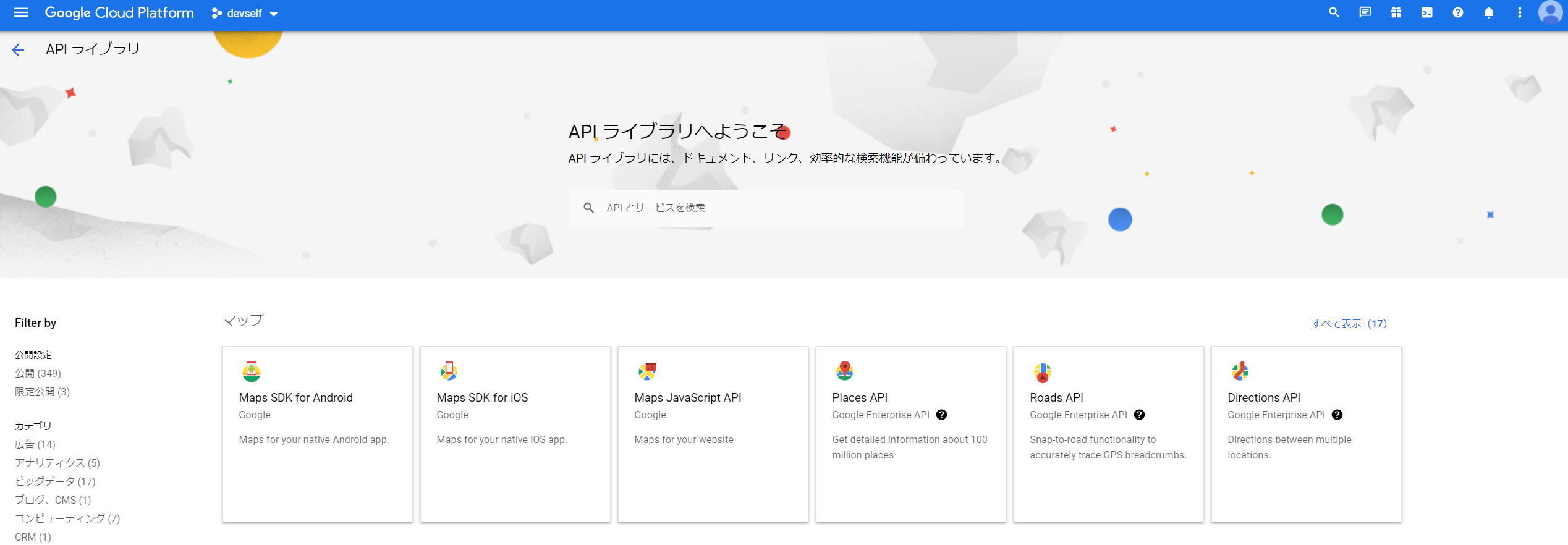
In GCP, you need to enable APIs for services you use. This can be done from the API Library screen or via gcloud.
- Why is GCP designed to require API activation?
- Inevitably leads to one-liners like this…
- One-liner to Enable All GCP APIs - Qiita
Reference: Enabling APIs in a Google Cloud Project | Cloud Endpoints with OpenAPI
- Why is GCP designed to require API activation?
-
From the API Library
-
gcloud command
gcloud services enable SERVICE_NAME
-
-
Provisioning Stackdriver workspaces
- Stackdriver has been integrated into the Operations Suite, and specifically provisioning workspaces is no longer required.
- Operations Suite overview:
- Cloud Logging
- Real-time log management and analysis
- Can ingest application and system log data, as well as custom log data from GKE environments, VMs, and Google Cloud services
- Cloud Monitoring
- Built-in large-scale metrics observability
- Monitor performance, uptime, and overall behavior of applications running in the cloud. Collect metrics, events, and metadata from Google Cloud services, hosted uptime probes, application instrumentation, and commonly used application components, then visualize with charts and dashboards and manage alerts
- Application Performance Management (APM)
- Integrates Cloud Trace , Cloud Debugger , and Cloud Profiler
- Cloud Trace
- Detect performance bottlenecks in production
- Cloud Trace automatically analyzes all application traces and generates detailed latency reports that identify the causes of performance degradation
- Detect performance bottlenecks in production
- Cloud Debugger
- Investigate code behavior in production
- Real-time application debugging
- Investigate code behavior in production
- Cloud Profiler
- Continuous CPU and heap profiling to help improve performance and reduce costs
- Cloud Logging
1.2 Manage billing configuration. Tasks include:
-
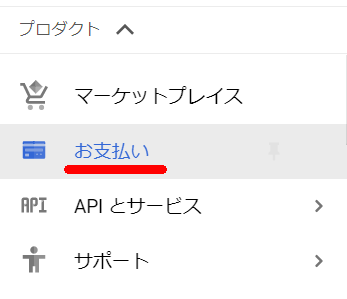
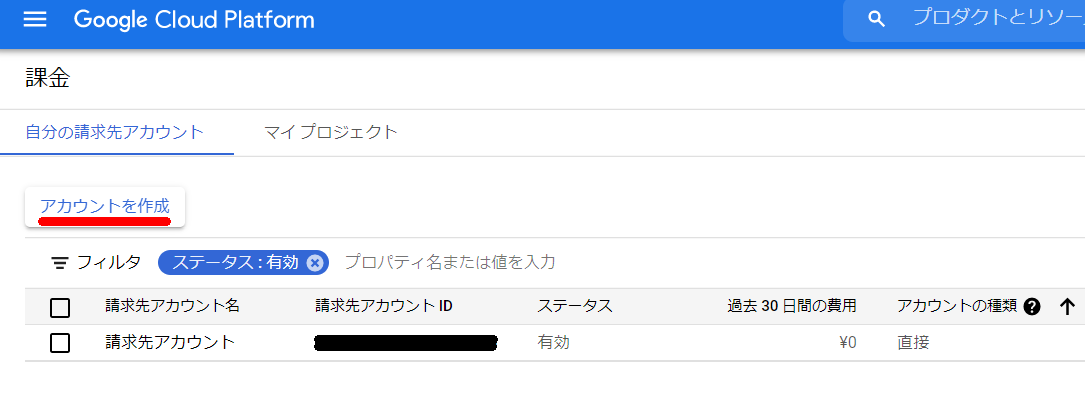
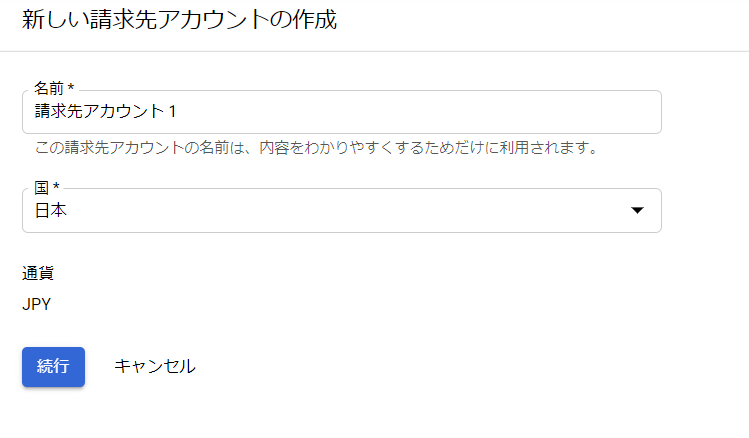
Creating a billing account
-
Requires
billing.accounts.createpermissionReference: Create, Modify, or Close a Self-Serve Cloud Billing Account | Cloud Billing | Google Cloud
-
-
Linking projects to a billing account
Reference: Enable, Disable, or Change Billing for a Project | Cloud Billing | Google Cloud
-
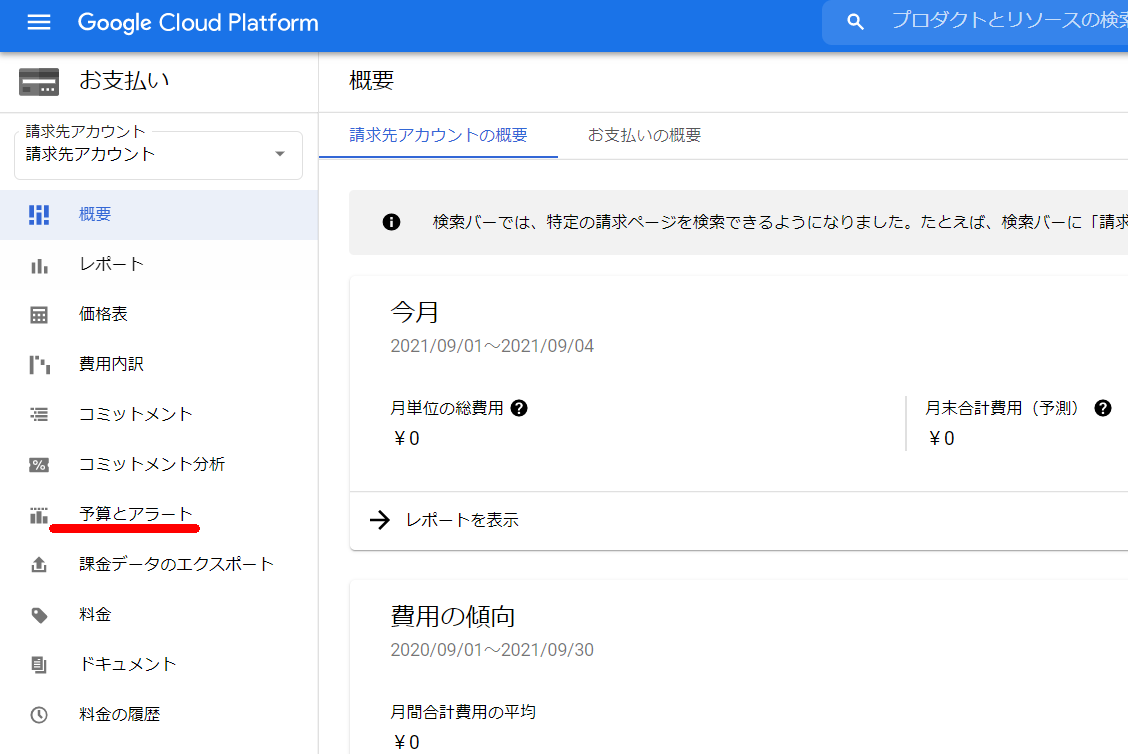
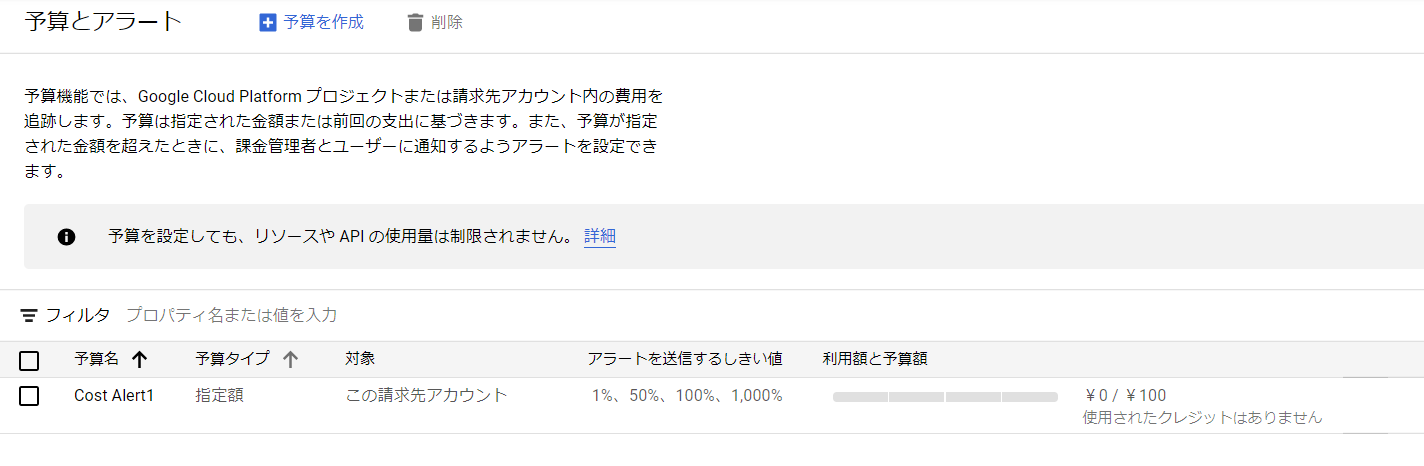
Setting up billing budgets and alerts
Reference: Set Budgets and Budget Alerts | Cloud Billing | Google Cloud
-
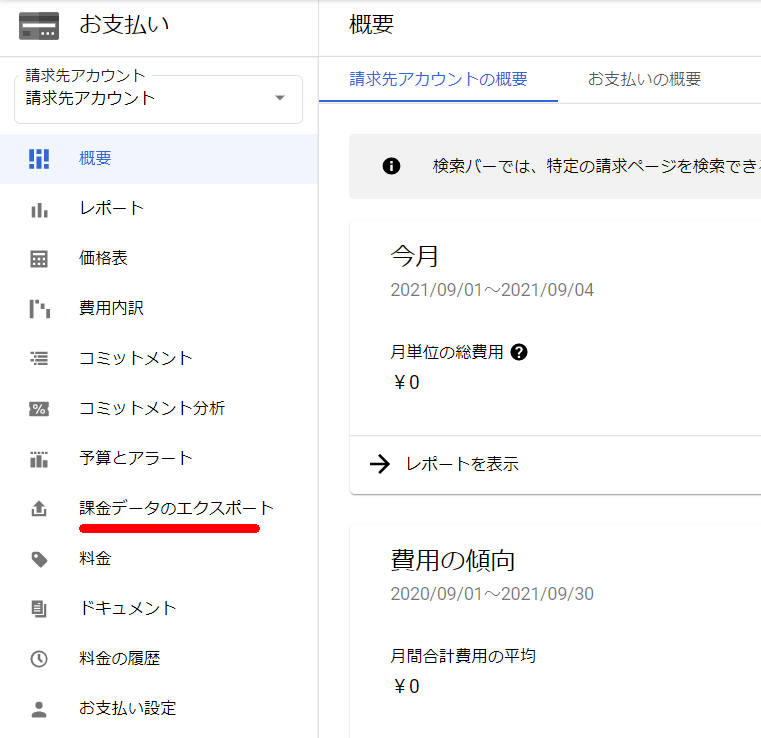
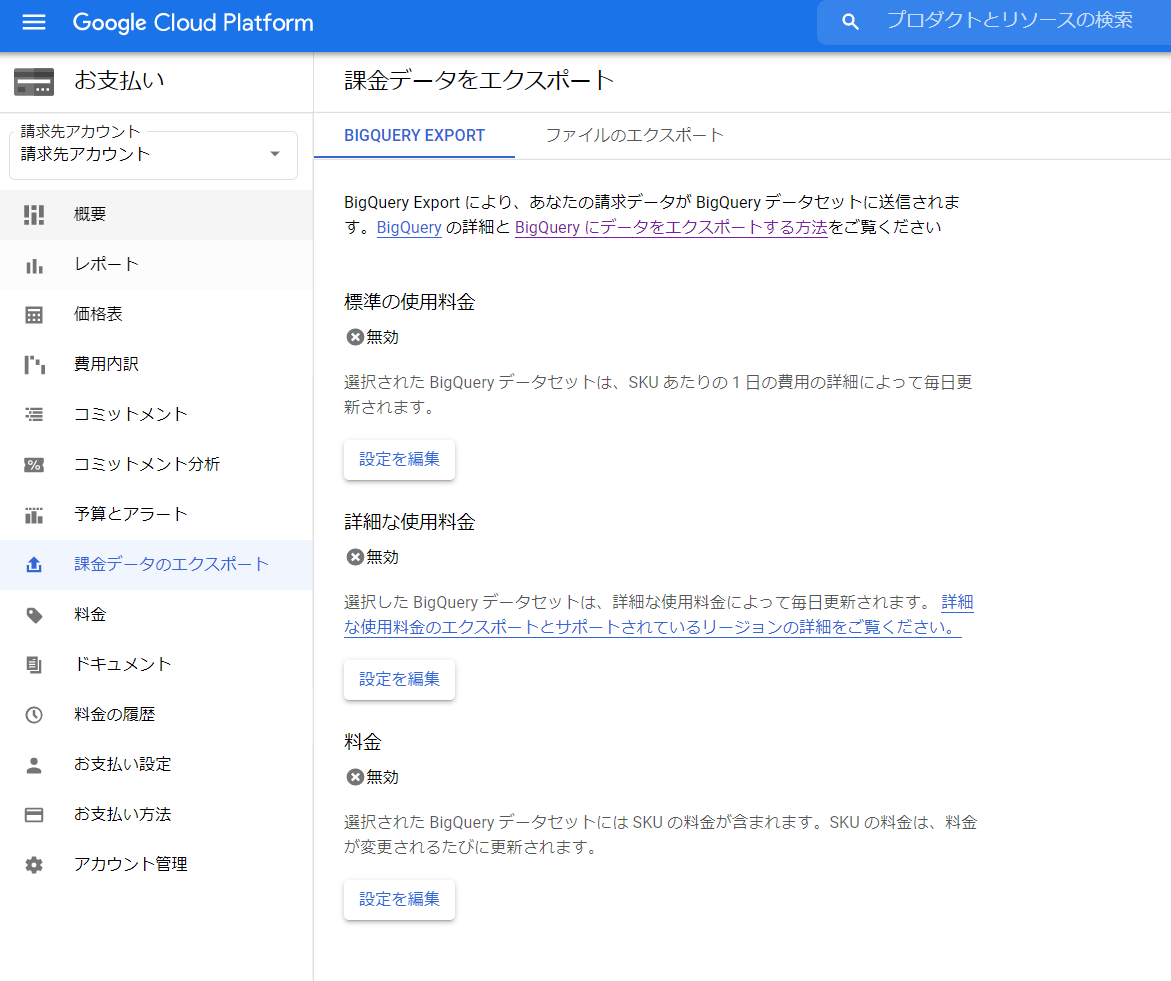
Setting up billing exports to estimate daily/monthly charges
-
Using the Cloud Billing export to BigQuery feature, you can automatically export detailed Google Cloud billing data (usage, cost estimates, pricing data, etc.) to a specified BigQuery dataset throughout the day. Note that Cloud Billing data before enabling export will not be available.
Reference: Export Cloud Billing Data to BigQuery | Google Cloud
-
1.3 Install and configure the command-line interface (CLI), specifically Cloud SDK (e.g., setting the default project)
-
When the manual says “SDK configuration,” it’s unclear what it refers to, but in English it appears to be “Configuration.” I understand this as something like profiles or settings.
-
Create a configuration
gcloud config configurations create [NAME] -
Activate a configuration
gcloud config configurations activate [NAME] -
List configurations
gcloud config configurations list -
Set configuration properties
gcloud config set project [PROJECT] gcloud config unset project -
Display configuration properties
gcloud config configurations describe [NAME] -
Delete a configuration
gcloud config configurations delete [NAME]
Reference: Managing SDK Configurations | Cloud SDK Documentation | Google Cloud
-